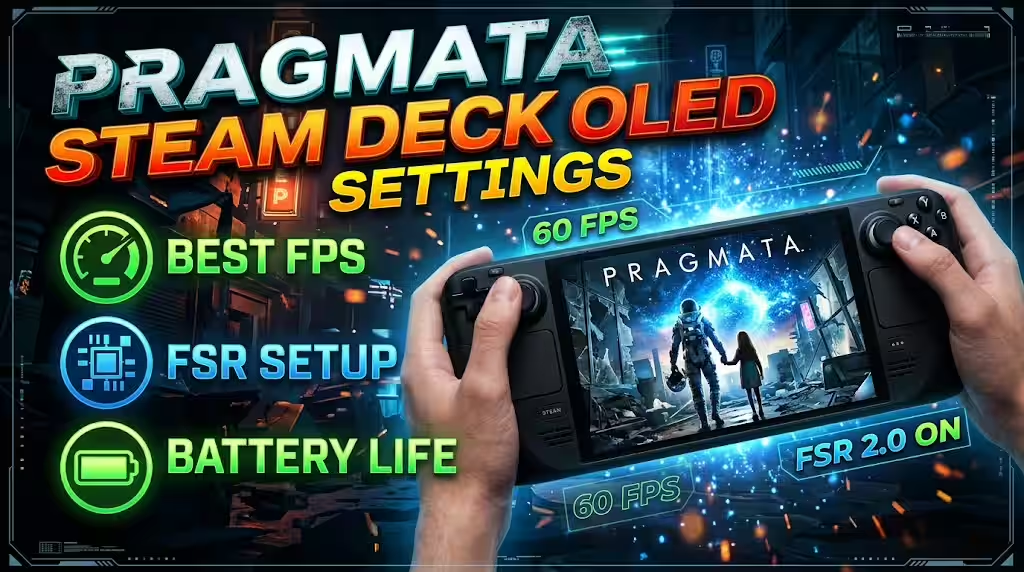
PRAGMATA is playable on the Steam Deck OLED, but you need to choose between smoother gameplay, sharper graphics, and battery life. The best starting point for most players is Proton Experimental, FSR 3 Balanced, low graphics settings, and a 40 FPS cap. If you prefer image quality over responsiveness, use FSR 3 Quality and target 30 FPS instead.
Steam Deck HQ tested both approaches and found that FSR 3 produced a noticeably clearer image than the game’s default FSR 1 upscaling. The reviewer also reported frame-rate drops in demanding areas, so neither profile should be treated as a guarantee of a perfect frame-rate lock.
This guide explains exactly which SteamOS settings to change, which graphics options to adjust, how to troubleshoot performance problems, and whether the community FSR 4 and Lossless Scaling modifications are worth trying.
Best PRAGMATA Steam Deck OLED settings
<box border radius="xl" padding={4} gap={3}>
<row align="center" gap={2}>
<AsyncImage query="PRAGMATA Capcom Hugh Diana lunar facility gameplay screenshot" aspectRatio="4:3" maxWidth="112px" />
<box flex="1" gap={1}>
<title size="lg">Balanced performance profile</title>
<text color="secondary" size="sm">Best starting point for most players</text>
<row gap={2} wrap="wrap">
<badge color="success">40 FPS target</badge>
<badge>FSR 3 Balanced</badge>
</row>
</box>
</row>
<divider color="subtle" />
<table>
<table-row>
<table-cell>Compatibility</table-cell>
<table-cell>Proton Experimental</table-cell>
</table-row>
<table-row>
<table-cell>Resolution</table-cell>
<table-cell>1280 × 800</table-cell>
</table-row>
<table-row>
<table-cell>Refresh rate</table-cell>
<table-cell>80 Hz</table-cell>
</table-row>
<table-row>
<table-cell>Frame-rate limit</table-cell>
<table-cell>40 FPS</table-cell>
</table-row>
<table-row>
<table-cell>Upscaling</table-cell>
<table-cell>FSR 3, Balanced</table-cell>
</table-row>
<table-row>
<table-cell>TDP limit</table-cell>
<table-cell>Off</table-cell>
</table-row>
<table-row>
<table-cell>Manual GPU clock</table-cell>
<table-cell>Disabled</table-cell>
</table-row>
<table-row>
<table-cell>Scaling filter</table-cell>
<table-cell>Linear</table-cell>
</table-row>
<table-row>
<table-cell>Half-rate shading</table-cell>
<table-cell>Off</table-cell>
</table-row>
</table>
<text color="secondary" size="xs">Based on the performance configuration published by Steam Deck HQ. Performance varies by scene, game version, and SteamOS configuration.</text>
</box>
The main change is switching the game’s upscaling option from FSR 1 to FSR 3. Steam Deck HQ found that this substantially reduced visible shimmering, especially around fine details. The trade-off was some additional performance cost, making the 40 FPS target a sensible compromise.
If you have already installed the game and it launches properly, you can begin with the graphics settings. If it fails to launch or shows a Direct3D error, start with the Proton instructions below.
1. Get PRAGMATA running correctly
Force Proton Experimental if necessary
Steam Deck HQ encountered a Direct3D error with the default Proton configuration during its review. Proton Experimental resolved the issue in that test.
To try it:
- Open Steam and go to your Library.
- Highlight PRAGMATA.
- Press the Menu button or open the game’s settings.
- Select Properties.
- Open Compatibility.
- Enable the option to force a specific Steam Play compatibility tool.
- Select Proton Experimental.
- Return to the Library and launch the game.
The default Proton version may work on your current installation. If it does, there is no need to change it simply because an earlier review reported a problem.
If Proton Experimental introduces a new issue, return to the previous setting and check for game or Proton updates before trying more complicated fixes.
You can also check the official PRAGMATA Steam page for the current compatibility information.
Set the correct display resolution
For handheld play, start with the game’s native Steam Deck OLED resolution of 1280 × 800.
This lets the display use its full pixel grid. Lowering the output resolution is not automatically a performance win if the game is already using an upscaler, so test it only if you need additional headroom.
Keep the distinction between output resolution and internal rendering resolution in mind. With FSR enabled, the game renders internally at a lower resolution and reconstructs the image for display.
2. Set the Steam Deck OLED to 40 FPS
The Steam Deck OLED has a display refresh rate of up to 90 Hz. Steam Deck HQ’s tested performance profile uses an 80 Hz refresh rate and a 40 FPS cap.
To apply the settings:
- Launch PRAGMATA.
- Press the Steam Deck’s Quick Access button, marked with three dots.
- Open the Performance section.
- Enable the performance overlay if you want to monitor the frame rate and power consumption.
- Set the refresh rate to 80 Hz.
- Set the frame-rate limit to 40 FPS.
- Leave the TDP limit off and the manual GPU clock disabled initially.
- Return to the game and test a demanding area.
Why use 80 Hz with a 40 FPS cap? Each rendered frame can be displayed across two refresh cycles. This gives you a consistent display cadence when the game maintains 40 FPS.
Do not confuse the 40 FPS cap with a guaranteed 40 FPS lock. The game can still dip below the target when the rendering workload increases.
If you notice repeated drops, try the 30 FPS profile in the next section instead of immediately applying a restrictive power limit.
3. Best PRAGMATA graphics settings for performance
The following settings form a practical starting profile. The overall approach is based on Steam Deck HQ’s published testing, while the reason for each adjustment is explained so you can make informed changes.
| In-game option | Recommended setting | Reason |
|---|---|---|
| Upscaling | FSR 3 | Reduces the shimmering reported with FSR 1 |
| FSR quality | Balanced | A useful compromise between clarity and performance |
| Global illumination | Low | Reduces lighting workload |
| Hair quality | Low | Saves some rendering resources |
| Texture quality | Lowest initially | Matches the published performance-focused profile |
| Texture filtering | Medium | Keeps surfaces reasonably clear |
| Mesh quality | Low | Reduces geometry-related workload |
| Shadow quality | Low | Helps control the cost of shadows |
| Shadow cache | On | Retains cached shadow information |
| Contact shadows | Off | Removes an additional shadow effect |
| Effects quality | Low initially | Leaves more performance headroom |
| Ambient occlusion | Off | Reduces extra shading work |
| Volumetric lighting | Lowest | Reduces the cost of atmospheric lighting |
| Screen-space reflections | Off initially | Prioritises performance over reflections |
| Frame generation | Off | Establishes a baseline without generated frames |
A note about these settings: Steam Deck HQ’s review lists its performance profile as the game’s default settings except for FSR 3 Balanced, along with the SteamOS settings above. Its separate quality profile specifies several individual graphics options. The complete performance-profile values above are therefore a conservative tuning starting point, not a claim that every individual option was benchmarked separately.
Which setting should you change first if FPS drops?
Start with the upscaler and the frame-rate target. Those two decisions have a more direct effect on the experience than changing every graphics option at once.
If you want to preserve the clearer FSR 3 image, keep Balanced and lower expensive graphics options. If the game still struggles to maintain your target, switch to 30 FPS.
If the image is too soft and performance is acceptable, try FSR 3 Quality. Compare the result in the same area rather than judging the image from a single quiet scene.
Why not aim for 60 FPS?
Steam Deck HQ reported that PRAGMATA could exceed 60 FPS in lighter scenes, but open areas caused drops that made a consistent 60 FPS target unrealistic in its test.
That is why I would not build the default profile around 60 FPS. A frame-rate target that the game cannot maintain during demanding sections can lead to more noticeable fluctuations than a lower, more consistent cap.
4. Best PRAGMATA settings for sharper graphics
If you prefer visual detail over responsiveness, use a 30 FPS target and increase selected graphics settings.
<box border radius="xl" padding={4} gap={3}>
<row align="center" gap={2}>
<AsyncImage query="PRAGMATA Capcom detailed lunar research station gameplay environment" aspectRatio="4:3" maxWidth="112px" />
<box flex="1" gap={1}>
<title size="lg">Quality-focused profile</title>
<text color="secondary" size="sm">Prioritises image quality over frame rate</text>
<row gap={2} wrap="wrap">
<badge color="info">30 FPS target</badge>
<badge>FSR 3 Quality</badge>
</row>
</box>
</row>
<divider color="subtle" />
<table>
<table-row>
<table-cell>Refresh rate</table-cell>
<table-cell>90 Hz</table-cell>
</table-row>
<table-row>
<table-cell>Frame-rate limit</table-cell>
<table-cell>30 FPS</table-cell>
</table-row>
<table-row>
<table-cell>Upscaling</table-cell>
<table-cell>FSR 3, Quality</table-cell>
</table-row>
<table-row>
<table-cell>Global illumination</table-cell>
<table-cell>Low</table-cell>
</table-row>
<table-row>
<table-cell>Hair quality</table-cell>
<table-cell>Medium</table-cell>
</table-row>
<table-row>
<table-cell>Texture quality</table-cell>
<table-cell>Lowest</table-cell>
</table-row>
<table-row>
<table-cell>Texture filtering</table-cell>
<table-cell>Medium</table-cell>
</table-row>
<table-row>
<table-cell>Mesh quality</table-cell>
<table-cell>Low</table-cell>
</table-row>
<table-row>
<table-cell>Shadow quality</table-cell>
<table-cell>Medium</table-cell>
</table-row>
<table-row>
<table-cell>Shadow cache</table-cell>
<table-cell>On</table-cell>
</table-row>
<table-row>
<table-cell>Contact shadows</table-cell>
<table-cell>Off</table-cell>
</table-row>
<table-row>
<table-cell>Effects quality</table-cell>
<table-cell>Medium</table-cell>
</table-row>
<table-row>
<table-cell>Ambient occlusion</table-cell>
<table-cell>Off</table-cell>
</table-row>
<table-row>
<table-cell>Volumetric lighting</table-cell>
<table-cell>Lowest</table-cell>
</table-row>
<table-row>
<table-cell>Bloom</table-cell>
<table-cell>Off</table-cell>
</table-row>
<table-row>
<table-cell>Screen-space reflections</table-cell>
<table-cell>On</table-cell>
</table-row>
<table-row>
<table-cell>Frame generation</table-cell>
<table-cell>Off</table-cell>
</table-row>
<table-row>
<table-cell>TDP limit</table-cell>
<table-cell>Off</table-cell>
</table-row>
</table>
<text color="secondary" size="xs">Based on the quality-focused configuration published by Steam Deck HQ. Its review reported approximately 15 W to 19 W of total system power consumption during this profile.</text>
</box>
This profile raises hair, shadow, and effects quality while keeping more expensive settings low. FSR 3 Quality aims to preserve more detail than Balanced, but the lower frame-rate target gives the hardware more room to handle the extra visual workload.
Use this profile if you prefer a more cinematic presentation and are comfortable with 30 FPS. If you find the motion too slow during combat, return to the balanced profile.
5. PRAGMATA Steam Deck OLED battery life
Steam Deck HQ reported approximately 2.5 to 3 hours of battery life during its testing. Its performance profile used about 14 W to 18 W of total system power, while the quality profile used approximately 15 W to 19 W.
These are measured results from that review, not guaranteed battery-life figures for every OLED unit. Screen brightness, battery condition, game updates, and the scene being rendered can change the result.
How to get more play time
Start with the 30 FPS profile. A lower frame-rate target can reduce the amount of rendering work required, although actual power savings depend on the scene and how the game responds.
Lower the display brightness. The OLED screen contributes to total power consumption. A brightness level that is comfortable indoors may be unnecessarily high in a dim room.
Keep the TDP limit off until you have a baseline. Steam Deck HQ recommended no TDP limit because power demand fluctuated in open areas. A limit that works during a quiet section may cause frame-rate drops later.
Monitor total system power. The performance overlay helps you see whether a setting change reduces power consumption or simply makes the game less responsive.
Avoid unnecessary background activity. Close downloads and other tasks you do not need while playing.
Do not assume a particular TDP value will produce a specific battery life. TDP is a processor power limit, while the total power reading includes the display and other system components.
6. PRAGMATA FSR 4 on Steam Deck OLED: Is it worth installing?
FSR 4 is an optional advanced experiment for players who are comfortable modifying game files. It is not required to get PRAGMATA running well on Steam Deck OLED.
In an April 2026 video, Deck Wizard demonstrated an FSR 4 workaround on SteamOS 3.8.2. The method replaced the game’s existing upscaler file with an FSR 4 version. The video notes that the in-game menu continued to display FSR 3, while an on-screen indicator showed FSR 4.0.2c.
That detail is important because it means the menu label alone does not confirm which upscaler is actually running.
There is also a community FSR 4.0.2 mod for PRAGMATA. Read the current description and compatibility notes before using it. Community modifications can change, and instructions written for one SteamOS build may not work on another.
Should you use FSR 4 instead of FSR 3?
Start with the normal FSR 3 configuration. Consider FSR 4 only if you want to experiment with image reconstruction and are comfortable restoring the original files if something goes wrong.
The potential benefits include a cleaner image in some situations, but the result depends on the specific implementation. Do not assume that installing a newer upscaler automatically produces higher FPS or eliminates all visual artefacts.
Before replacing the upscaler file
- Confirm that the mod supports your game version and SteamOS installation.
- Locate the correct PRAGMATA installation directory.
- Back up the original upscaler file before making any changes.
- Follow the installation instructions supplied by the mod’s author.
- Launch the game and compare the result with your original FSR 3 settings.
- If the game crashes or visual quality becomes worse, restore the original file or use Steam’s file verification feature.
Do not download replacement DLL files from untrusted websites. A file replacement can cause instability, and game updates may overwrite it or make it incompatible.
7. Does Lossless Scaling improve PRAGMATA on Steam Deck OLED?
Lossless Scaling is associated with frame-generation techniques that can make movement appear smoother by creating additional frames. SteamOS users have also experimented with community implementations.
The important limitation is that generated frames are not equivalent to rendering the game at a higher native frame rate. Input response still depends on the underlying game performance, and frame generation can introduce latency or visual artefacts.
Deck Wizard’s PRAGMATA Steam Deck FSR 4 and Lossless Scaling test demonstrates an experimental setup on SteamOS 3.8.2.
When should you try it?
Try it only after the game runs well with the standard settings. If the game struggles badly at its native frame rate, frame generation is not a substitute for reducing the rendering workload.
Before installing a frame-generation tool:
- Check the current SteamOS compatibility instructions.
- Confirm whether the method requires a particular graphics layer or plugin.
- Start with the game’s frame generation disabled unless the installation guide explicitly requires otherwise.
- Compare input response as well as the FPS counter.
- Remove the modification if it introduces stutter, ghosting, crashes, or control delay.
If you mainly want to play the game without troubleshooting, stick with FSR 3 Balanced and a 40 FPS cap.
8. Fix PRAGMATA stuttering, low FPS, and launch errors
Different problems need different fixes. Use this table to identify the most sensible first step.
| Problem | First thing to try | Why |
|---|---|---|
| Game fails to launch or shows a Direct3D error | Try Proton Experimental | This resolved a launch issue in Steam Deck HQ’s test |
| Image looks shimmery | Change FSR 1 to FSR 3 Balanced | The reviewer reported a substantial reduction in shimmering |
| FPS drops in open areas | Reduce expensive settings or use a 30 FPS cap | Demanding scenes can exceed the hardware’s comfortable rendering budget |
| Image looks too soft | Try FSR 3 Quality | Quality mode prioritises image detail over performance |
| Battery drains quickly | Use a 30 FPS cap and lower screen brightness | Reduces display and rendering demands |
| Game becomes unstable after an FSR modification | Restore the original upscaler file | Helps isolate modification-related problems |
| Stuttering begins after an update | Test the unmodified game and check Proton updates | Separates software changes from graphics-setting issues |
| Docked image looks soft on a TV | Check output resolution and FSR quality | A larger screen can make reconstruction artefacts easier to see |
How to troubleshoot without making things worse
Change one setting at a time. If you lower resolution, change the upscaler, install a new Proton version, and add frame generation together, you will not know which change helped or caused a problem.
Test in the same area after each adjustment. A quiet corridor is not a useful comparison if your stuttering occurs during a demanding combat encounter.
If the problem began after a modification, remove that modification before trying unrelated performance tweaks.
9. PRAGMATA on Steam Deck OLED: handheld vs. docked
The OLED model’s display and power characteristics make it attractive for portable gaming, but docking the system does not add GPU power.
Handheld settings
For portable play, begin with 1280 × 800, FSR 3 Balanced, and the 40 FPS profile. The built-in display is a natural fit for this resolution.
If you prefer longer play sessions or find the frame rate inconsistent, try the 30 FPS profile and lower brightness.
Docked settings
For a television, keep the internal rendering workload manageable even if the external display supports 1080p or 4K. The output resolution and internal rendering resolution are different things when upscaling is enabled.
Start with FSR 3 Balanced and the performance-focused graphics settings. If you want a sharper image, test FSR 3 Quality at a lower frame-rate target.
Do not assume that connecting an external display will improve performance. The same handheld hardware is still responsible for rendering the game.
10. Is PRAGMATA worth playing on Steam Deck OLED?
Yes, if you are comfortable with a 30 or 40 FPS target rather than expecting a locked 60 FPS experience.
Steam Deck HQ rated the game’s Steam Deck performance positively, but its review also noted frame-rate drops in demanding areas. The settings that work best depend on whether you value image quality, responsiveness, or battery life.
For most players, I would start with FSR 3 Balanced and the 40 FPS profile. If you prefer a sharper image and can accept slower motion, switch to FSR 3 Quality and 30 FPS.
FSR 4 and Lossless Scaling are optional experiments. They can be interesting for technically confident users, but you do not need them to enjoy the game.
For broader gameplay help, read our PRAGMATA guide and tips.
Frequently asked questions
Is PRAGMATA Steam Deck Verified?
Yes. The game’s Steam listing reports Steam Deck Verified compatibility. Valve’s assessment covers controller configuration, legibility, and compatibility, but it does not guarantee a perfect frame-rate lock at every graphics setting.
What are the best PRAGMATA Steam Deck OLED settings?
Start with Proton Experimental, 1280 × 800 resolution, FSR 3 Balanced, low graphics settings, an 80 Hz refresh rate, and a 40 FPS cap. Leave the TDP limit off initially.
Can PRAGMATA run at 60 FPS on Steam Deck OLED?
The game can reach higher frame rates in lighter scenes, but Steam Deck HQ reported drops in demanding areas. A 30 or 40 FPS target is a more practical starting point for consistent play.
Should I use FSR 3 Balanced or Quality?
Use Balanced when performance is your priority. Use Quality when you prefer a sharper image and are comfortable targeting 30 FPS. Compare the two in a demanding area rather than relying on a single screenshot.
How long does PRAGMATA last on Steam Deck OLED battery power?
Steam Deck HQ reported approximately 2.5 to 3 hours during its testing. Actual battery life depends on brightness, system power, battery condition, and the scene being rendered.
Can I use FSR 4 on Steam Deck OLED?
Community testing has demonstrated an FSR 4 workaround, but it requires modifying the game’s upscaler file. It is not necessary for normal play, and compatibility depends on the game and SteamOS versions.
Does Lossless Scaling work on Steam Deck OLED?
Community frame-generation methods have been demonstrated on SteamOS, but the setup and results depend on the specific tool and software version. Generated frames can introduce latency or visual artefacts, so test the standard game configuration first.
Should I limit the Steam Deck’s TDP for PRAGMATA?
Not as your first adjustment. Steam Deck HQ recommended leaving the limit off because the game’s power demand varied across areas. Test a limit only after establishing a stable baseline and checking how it affects frame pacing.
What should I do if PRAGMATA looks blurry on Steam Deck OLED?
Try FSR 3 Balanced first, then compare it with FSR 3 Quality. Also check that you have not enabled half-rate shading in the SteamOS performance menu, as that can reduce visual quality. Do not replace game files until you have tested the standard settings.
Final recommendation
For most Steam Deck OLED owners, the best starting configuration is Proton Experimental, FSR 3 Balanced, low graphics settings, an 80 Hz display refresh rate, and a 40 FPS cap. It balances image quality and responsiveness without relying on experimental modifications.
If you prefer a sharper image, use FSR 3 Quality with a 30 FPS cap. If you want to experiment with FSR 4 or Lossless Scaling, back up your files and follow instructions written for your current software version.
The most important goal is not to produce the highest FPS counter in a quiet area. It is to find settings that keep PRAGMATA enjoyable during the demanding sections where performance matters most.