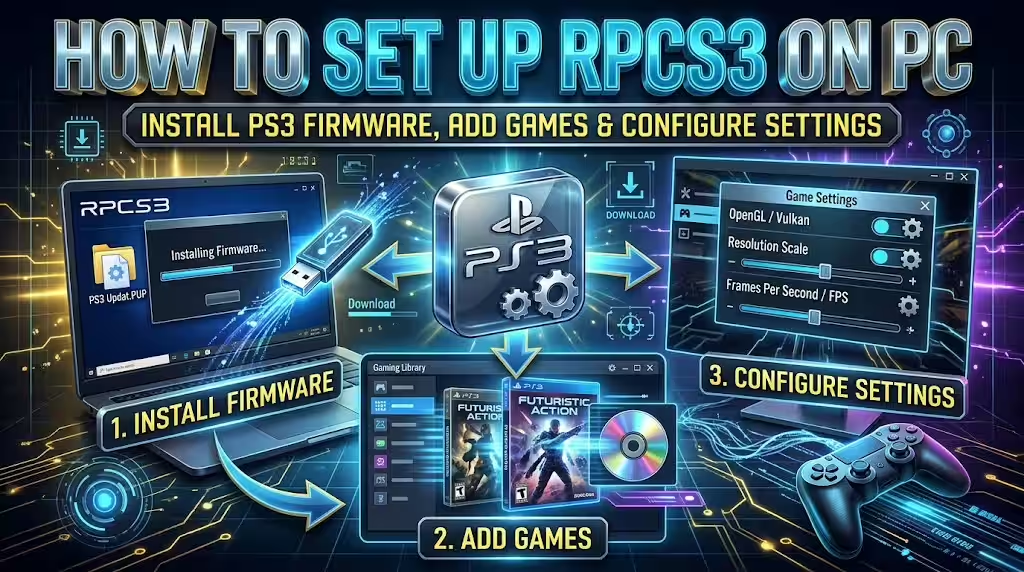
RPCS3 lets you play compatible PlayStation 3 games on a Windows PC. To set it up, download the emulator, install Sony’s official PS3 firmware, add your legally obtained game files, and configure your graphics and controller settings.
However, installing the emulator is only part of the process. You also need compatible hardware, working graphics drivers, and properly dumped game files.
This tutorial covers the complete RPCS3 setup process, from the first download to launching your games. It also explains Vulkan settings, controller configuration, compatibility ratings, and common startup errors.
What Is RPCS3?
RPCS3 is a free, open-source PlayStation 3 emulator for Windows, Linux, macOS and other supported platforms.
An emulator recreates parts of a console’s hardware and software environment. This allows a computer to run software designed for that console.
RPCS3 focuses on PlayStation 3 games. However, not every game runs perfectly. Some titles are fully playable, while others have graphical problems, crashes or performance issues.
RPCS3 does not include commercial games or PlayStation 3 firmware. You must provide the required system software and your own legally obtained game files.
Download the emulator from the official RPCS3 website.
What You Need Before Installing RPCS3
Before downloading RPCS3, check whether your PC can handle PS3 emulation.
RPCS3 can place heavy demands on your processor. A computer that runs ordinary PC games well may still struggle with certain PlayStation 3 titles.
The official requirements page provides these 2026 hardware recommendations:
| Component | Minimum | Recommended |
|---|---|---|
| Operating system | Windows 10 | Windows 11 |
| Processor | Intel Core 2 Duo or AMD Athlon 64 X2 | Intel Core i5-10400 or AMD Ryzen 5 5600 |
| Graphics | NVIDIA GT 430, ATI HD 2900 XT or Intel Arc A310 | NVIDIA RTX 2060 or AMD RX 5600 XT |
| RAM | 8 GB | 16 GB |
| Storage | HDD | SSD |
These are broad requirements, not guarantees for every game. Performance depends on the title, graphics driver, emulator build and system configuration.
Check the official RPCS3 system requirements before installing.
Why Does RPCS3 Need a Powerful Processor?
The PlayStation 3 uses a unique processor design called Cell Broadband Engine.
Modern desktop processors use a different architecture. RPCS3 must translate the console’s instructions so your PC can execute them.
This process requires significant CPU resources. Therefore, processor performance can have a major effect on emulation speed.
A stronger graphics card also helps with demanding games. However, upgrading your GPU will not fix every CPU-related slowdown.
Other Things You Need
Prepare these items before starting:
- A supported 64-bit operating system.
- Updated graphics drivers.
- Microsoft Visual C++ Redistributable on Windows.
- Official PS3 system software.
- Your own legally obtained PS3 game files.
- Enough storage for games, updates and emulator caches.
- A compatible controller or keyboard.
An SSD is recommended for storage. It can help with loading and file access, although it cannot guarantee better frame rates.
Step 1: Download RPCS3 From the Official Website
The safest way to download RPCS3 is through its official website.
Avoid third-party download pages. They may offer outdated builds, modified files or unwanted software.
Follow these steps:
- Open the official RPCS3 download page.
- Find the Windows download section.
- Select the package that matches your processor architecture.
- Download the latest available build.
- Save the archive to a location you can find easily.
Most Windows desktop users should choose the x64 package. Windows ARM devices need the appropriate ARM64 package.
Extract the RPCS3 Files
RPCS3’s Windows package is distributed as a compressed archive. It does not use a traditional installation wizard.
After downloading it:
- Open the folder containing the downloaded archive.
- Right-click the RPCS3 archive.
- Extract its contents.
- Choose a permanent folder for the emulator.
- Open the extracted folder.
- Find and run
rpcs3.exe.
For example, you can use:
C:\Emulators\RPCS3
You can choose another drive if you prefer. Keep the emulator in one permanent location to avoid problems with shortcuts and file paths.
Install Microsoft Visual C++ Redistributable
Windows users also need Microsoft’s Visual C++ v14 Redistributable.
RPCS3’s current Quickstart page provides the official x64 download.
- Open the Microsoft Visual C++ Redistributable download.
- Download the installer.
- Run the downloaded file.
- Accept the license terms.
- Select Install.
- Restart Windows if requested.
This runtime provides components that RPCS3 needs to operate.
If a compatible version already exists, the installer may offer repair or modification options.
Open RPCS3 for the First Time
After extraction, double-click rpcs3.exe.
The emulator should open its main window. However, games will not run correctly until you install the required PS3 system software.
Do not download firmware from random emulator websites. Sony provides the official update package.
Step 2: Download Official PS3 Firmware
RPCS3 requires the official PlayStation 3 system software.
The firmware package contains system modules needed by the emulator. Its filename is:
PS3UPDAT.PUP
Sony’s current PS3 support page lists system software version 4.93.
Follow these steps:
- Open Sony’s official PS3 system software page.
- Find the system software download section.
- Select the official update download.
- Save the file to your computer.
- Confirm that the downloaded file is named
PS3UPDAT.PUP.
The file should remain in its original format. Do not rename another file to make it look like PS3 firmware.
Also, avoid modified firmware packages from unofficial websites.
Important: Sony provides the firmware, while RPCS3 provides the emulator. They are separate downloads.
Step 3: Install PS3 Firmware in RPCS3
After downloading the firmware, install it through the emulator.
Follow these steps:
- Open RPCS3.
- Select File from the top menu.
- Choose Install Firmware.
- Browse to your downloaded
PS3UPDAT.PUPfile. - Select the file.
- Confirm the installation.
- Wait for RPCS3 to finish processing it.
RPCS3 will install the required firmware modules. The process may take a little time.
Once installation finishes, the emulator is ready for game setup.
How to Fix RPCS3 Firmware Installation Errors
If RPCS3 rejects the firmware file, check these things:
- Make sure you downloaded the official Sony update.
- Select the
.PUPfile itself, not its containing folder. - Check that the download completed successfully.
- Download a fresh copy if the file appears corrupted.
- Restart RPCS3 and try again.
Do not use unofficial firmware files to bypass an installation error.
Step 4: Add PS3 Games to RPCS3
RPCS3 does not include commercial PlayStation 3 games. You must provide your own legally obtained game files.
The process of extracting a game from its original disc or digital copy is called dumping.
RPCS3 supports different dumping methods, depending on the game format.
Method 1: Dump Physical PS3 Discs
You can dump physical PS3 games using either:
- An original PlayStation 3 console with the required custom firmware and tools.
- A compatible Blu-ray drive connected to your computer.
Not every PC Blu-ray drive can read PS3 discs. Check the RPCS3 list before buying a drive for this purpose.
The official RPCS3 game-dumping instructions explain both methods.
RPCS3 also documents the PS3 Disc Dumper tool. This tool can simplify the process when you have a compatible Blu-ray drive.
Method 2: Dump Digital PS3 Games
Digital PS3 games and downloadable content require a different process.
The official RPCS3 documentation uses an original PS3 console for dumping digital games and DLC.
The process involves obtaining the original game package and its required license file from your own purchase.
A digital game may include:
- A
.PKGpackage. - A
.RAPlicense file. - Additional required game data.
A missing or incorrect license can prevent a digital game from starting.
Follow the official dumping instructions for the correct process. Do not download commercial game packages or license files from unauthorized websites.
Create a Folder for Your Game Files
After dumping your games, create a dedicated folder on your PC.
For example:
D:\PS3 Games
Keep your game folders organized. This makes it easier to add, find and manage titles inside RPCS3.
An SSD is a good storage choice, especially for large games.
How to Add a Game Folder to RPCS3
Once you have a supported game dump:
- Open RPCS3.
- Select File.
- Choose Add Games.
- Browse to the folder containing your game dumps.
- Select the correct game folder or parent folder.
- Allow RPCS3 to scan the files.
Recognized games should appear in the emulator’s game list.
A typical folder-based disc dump contains a PS3_GAME directory and a PS3_DISC.SFB file. However, layouts can vary by dump type.
If your files look different, check the official dumping instructions.
How to Install Digital PS3 Games
Digital games use a different installation process from folder-based disc dumps.
If you have a supported digital game package and its required license files:
- Open RPCS3.
- Select File.
- Choose Install Packages/Raps/Edats.
- Select the appropriate files.
- Follow the installation prompts.
- Check the game list afterward.
The exact files depend on the digital game and its dump.
Do not rename files or download replacement licenses from unofficial websites.
Why Is My Game Not Appearing in RPCS3?
If your game does not appear, check these possible causes:
- You selected the wrong folder.
- The game dump is incomplete.
- The files use an unsupported format.
- You moved the game folder after adding it.
- The digital package or license was not installed correctly.
Check the game dump before changing graphics settings. A broken or incomplete game dump will not be fixed by changing the renderer.
Step 5: Configure RPCS3 Graphics Settings
Graphics settings affect image quality, compatibility and performance.
However, the best configuration depends on your graphics card and the game. Start with the default settings before making changes.
Select Vulkan as the Renderer
Vulkan is a good starting renderer when your graphics card and drivers support it.
To select it:
- Open RPCS3.
- Select Configuration.
- Open the GPU section.
- Find the Renderer option.
- Select Vulkan, if available.
- Apply or save the settings.
Vulkan can provide good performance on supported systems. However, it does not guarantee faster performance in every game.
What If Vulkan Is Missing?
If Vulkan does not appear, check your graphics hardware and drivers.
Download the latest compatible driver from your graphics card manufacturer’s official website.
After updating your driver, restart RPCS3 and check the renderer options again.
If Vulkan remains unavailable, use another supported renderer shown by your installation.
Should You Increase the Resolution Scale?
RPCS3 can render supported games above their original resolution.
This can make games look sharper on modern monitors. However, higher resolution settings also increase GPU workload.
For your first test, leave the resolution scale at its default value.
Once the game runs properly, try increasing it gradually. Test performance after each change.
Should You Change Advanced Graphics Settings?
Avoid changing several advanced options at once.
Some games need specific settings to fix graphical glitches or other problems. A setting that helps one game may cause issues in another.
Check the game’s compatibility notes before applying special fixes.
You can also use a custom game configuration where supported. This helps keep one game’s settings separate from your global configuration.
Step 6: Configure Your Controller
RPCS3 supports several controllers, including Xbox, DualShock 3, DualShock 4 and DualSense models.
The available features depend on the controller, operating system and selected input handler.
Connect your controller before opening the configuration menu.
How to Set Up an Xbox Controller
XInput is a common choice for Xbox controllers on Windows.
- Connect your Xbox controller to the PC.
- Open RPCS3.
- Select Configuration.
- Open Pads.
- Select the Player 1 configuration.
- Choose the XInput handler.
- Select your connected controller.
- Check the button mappings.
- Save the configuration.
Test the buttons before launching a game.
Xbox controllers work well for many games. However, they do not provide every original PS3 controller feature.
Some games require motion controls or pressure-sensitive buttons. An Xbox controller may not support those features.
How to Set Up a PlayStation Controller
DualShock 4 and DualSense controllers can also work with RPCS3.
- Connect your controller to the PC.
- Open RPCS3.
- Select Configuration.
- Open Pads.
- Choose a compatible handler.
- Select the detected controller.
- Check the button mappings.
- Save your settings.
The available controller features depend on the selected handler and connection method.
What About the Original DualShock 3?
The original DualShock 3 supports features such as motion controls and pressure-sensitive buttons.
However, Windows setup requires additional driver configuration.
The RPCS3 controller documentation recommends using its dedicated DualShock 3 handler with the appropriate driver, such as DsHidMini.
Follow the official RPCS3 controller configuration instructions before installing drivers.
Avoid installing several conflicting controller tools at the same time.
How to Fix Controller Input Problems
If your controller does not respond:
- Disconnect and reconnect it.
- Check whether Windows detects it.
- Restart RPCS3.
- Open Configuration → Pads.
- Select the correct input handler.
- Select the connected controller.
- Check the button mappings.
- Save and test again.
If Windows cannot detect the controller, fix that issue before troubleshooting RPCS3.
Step 7: Check RPCS3 Game Compatibility
Not every PS3 game works perfectly in RPCS3.
Some games are fully playable. Others may stop at the menu, show a black screen or crash.
Check your game’s compatibility status before spending time changing settings.
Open the official RPCS3 compatibility database and search for your game.
RPCS3 uses five main compatibility categories.
| Status | What it means |
|---|---|
| Playable | The game can be completed with playable performance and without game-breaking glitches. |
| Ingame | The game reaches gameplay but has serious issues, insufficient performance or cannot be completed reliably. |
| Intro | The game displays an image but does not progress beyond its menus. |
| Loadable | The game displays a black screen with a frame rate in the window title. |
| Nothing | The game fails to initialize properly, does not load or crashes the emulator. |
These statuses describe reported compatibility results. They do not guarantee identical performance on every computer.
Check the Correct Game Version
Do not search only by the game’s name.
RPCS3 tracks games using their game IDs. Physical disc releases and digital versions can have separate entries.
The region and release version can also matter.
Check the entry that matches your own game. Then read the available notes for known issues and recommended settings.
Why Does a Playable Game Still Run Slowly?
A Playable rating does not mean every computer can run the game smoothly.
Your processor, graphics card, drivers and settings all affect performance.
Some games also require specific configurations.
Check the game’s notes before assuming that your emulator installation is broken.
Common RPCS3 Errors and How to Fix Them
Even with the correct files, RPCS3 can encounter problems.
The following checks cover common installation and startup issues.
1. RPCS3 Will Not Open
If RPCS3 refuses to start:
- Confirm that you downloaded it from the official website.
- Extract the complete archive.
- Install or repair Microsoft Visual C++ Redistributable.
- Update your graphics drivers.
- Check whether your security software blocked the executable.
Do not disable your antivirus simply because an emulator triggers a warning. Verify the download source first.
2. Missing DLL Error
A missing DLL message can point to a missing Windows runtime.
Install or repair Microsoft’s Visual C++ Redistributable.
Restart Windows and open RPCS3 again.
Avoid downloading individual DLL files from random websites. They may be unsafe or incompatible.
3. Firmware Installation Failed
If RPCS3 rejects the firmware:
- Check that the file is named
PS3UPDAT.PUP. - Download a fresh copy from Sony.
- Select the actual update file.
- Make sure the download completed.
- Restart RPCS3 and try again.
Do not use unofficial firmware packages to bypass the error.
4. No Games Appear in RPCS3
If the emulator cannot find your games, check the folder you selected.
Open File → Add Games and choose the correct game directory.
Confirm that the dump is complete and uses a supported format.
For digital games, check that the package and required license files were installed correctly.
5. A Game Shows a Black Screen
A black screen does not always mean RPCS3 is broken.
First, check the game’s compatibility status.
Next, read its game-specific notes. Some games have known startup problems or require special settings.
Update RPCS3 and your graphics drivers before testing again.
6. A Game Stutters During the First Launch
RPCS3 may need to compile game code and build caches.
This can make the first launch slower than later sessions.
Allow the process to finish. Then test the game again.
If stuttering continues, check the game’s compatibility notes and your PC’s performance.
7. The Controller Does Not Work
Open Configuration → Pads.
Check the selected handler and controller. Then verify the button mappings and save the configuration.
If Windows cannot detect the controller, solve that problem first.
8. Vulkan Is Not Available
Check whether your GPU supports Vulkan.
Install the latest compatible graphics driver from the manufacturer.
Restart RPCS3 after updating the driver.
If Vulkan remains unavailable, select another renderer supported by your system.
Tips for Better RPCS3 Performance
Once your first game works, improve the setup carefully.
Use these practical steps:
- Keep RPCS3 updated.
- Install current graphics drivers.
- Use Vulkan when your hardware supports it.
- Store games on reliable storage.
- Start with the default graphics settings.
- Read game-specific compatibility notes.
- Change one setting at a time.
- Avoid copying settings from computers with different hardware.
Most importantly, do not expect one configuration to work for every PS3 game.
A title may run well with default settings. Another may need a custom configuration.
RPCS3 vs. Xenia: Which Emulator Should You Use?
RPCS3 and Xenia emulate different consoles.
RPCS3 is designed for PlayStation 3 games. Xenia focuses on Xbox 360 games.
Therefore, your choice depends on the console games you want to play.
If you want to run Xbox 360 games on your PC, follow our step-by-step Xenia setup guide.
Both emulators have separate compatibility lists and hardware requirements. Getting one emulator working does not guarantee that the other will run well on your computer.
Frequently Asked Questions About RPCS3
Is RPCS3 free to download?
Yes. RPCS3 is a free, open-source PlayStation 3 emulator. Download it from the official project website.
Do I need PS3 firmware to use RPCS3?
Yes. RPCS3 requires official PlayStation 3 system software. Download the update package from Sony and install it through File → Install Firmware.
Where can I download PS3 firmware for RPCS3?
Download the official system software from Sony’s PlayStation support website. The update file is named PS3UPDAT.PUP.
Does RPCS3 come with PS3 games?
No. RPCS3 does not include commercial PlayStation 3 games. You must provide your own legally obtained game files.
How do I add games to RPCS3?
For supported folder-based game dumps, open File → Add Games and select the correct game directory.
Digital games use a separate package and license installation process.
Can I use an Xbox controller with RPCS3?
Yes. RPCS3 supports compatible Xbox controllers. XInput is a common handler for Xbox controllers on Windows.
However, Xbox controllers do not support every original PS3 controller feature.
Can I use a PS4 or PS5 controller with RPCS3?
Yes. Compatible DualShock 4 and DualSense controllers can work with RPCS3. Available features depend on the controller, handler and connection method.
Is Vulkan better than OpenGL for RPCS3?
Vulkan is a good starting choice when your graphics hardware and drivers support it. However, performance can vary between games and computers.
Why does RPCS3 need so much CPU power?
RPCS3 translates PlayStation 3 instructions so your PC can execute them. This process can place heavy demands on your processor, especially in demanding games.
Can RPCS3 play every PS3 game?
No. Compatibility varies between titles. Some games are fully playable, while others have major problems or fail to start.
Check the official compatibility database before setting up a particular game.
Why does my game work on another PC but not mine?
Different computers have different processors, graphics cards, drivers and settings.
A game that runs well on one system may perform poorly on another. Check your game’s compatibility notes and compare your settings before making changes.
Final Thoughts
Setting up RPCS3 on PC requires three important things: the emulator, official PS3 firmware and properly dumped game files.
After installing those components, configure your graphics renderer and controller. Then check each game’s compatibility status before launching it.
If something goes wrong, troubleshoot one issue at a time. Avoid changing several advanced settings without checking the game’s recommendations.
With compatible hardware and properly prepared game files, RPCS3 can run many PlayStation 3 games on your PC.


